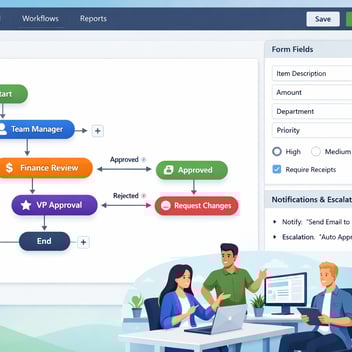
Integrating a no-code workflow platform with Microsoft 365 extends M365's collaboration and document capabilities with structured process automation — routing approvals through Teams, triggering workflows from SharePoint documents, syncing users from Azure Active Directory, and sending approval actions directly to Outlook. For organizations already invested in M365, Kissflow integration does not replace the Microsoft stack — it adds the process orchestration layer that M365 alone cannot provide.
Why Microsoft 365 Alone Isn't Enough for Business Process Automation
Microsoft 365 is an exceptional collaboration and productivity suite. Teams enables real-time communication; SharePoint manages documents; Outlook handles email; Power BI surfaces data. What it does not do natively — despite Microsoft's best efforts with Power Automate — is provide a structured, governed, business-process-automation platform that non-technical operations teams can own and maintain independently.
Power Automate is powerful for IT professionals and technical users who can work with its connector architecture and expression language. For the finance manager who needs a structured purchase approval workflow with conditional routing and SLA enforcement, Power Automate's learning curve is steeper than the value justifies — and the governance model for citizen development is less mature than dedicated workflow platforms.
Kissflow fills the gap: structured process automation that integrates cleanly with M365 components the organization already uses, without requiring technical expertise to build and maintain, and with a governance architecture designed for enterprise citizen development programs.
No-Code + M365: The Integration Architecture
The Kissflow + M365 integration operates at four levels. Identity (Azure AD SSO and SCIM provisioning), communication (Teams notifications and approval actions), documents (SharePoint-triggered workflows and document output storage), and email (Outlook approval emails and automated responses). Each integration is configured independently and can be enabled in any combination based on organizational needs.
Teams Integration: Workflow Notifications and Approvals in Chat
The Teams integration brings Kissflow workflow notifications and approval actions directly into the Teams interface — eliminating the context-switch to a separate browser tab for approval decisions. When a purchase request is submitted, the approver receives a structured Teams message with the request details, a one-click approve button, and a reject button with mandatory comment field.
Configuration requires a Kissflow Teams app installation (available in the Microsoft Teams App Store) and an administrator connection between the Kissflow workspace and the Teams tenant. Once connected, notification routing is configured per workflow — specifying which Teams channel or direct message receives which workflow notification type.
For organizations where Teams is the primary communication hub, this integration is the highest-impact change to adoption. Approval actions that live where people already work get completed faster than actions that require navigating to a separate tool.
SharePoint Integration: Document-Triggered Workflows
SharePoint serves as the document repository for many organizations. The Kissflow + SharePoint integration enables two patterns: SharePoint document upload triggering a Kissflow workflow (for example, a contract uploaded to a SharePoint folder automatically initiates a contract review workflow), and Kissflow workflow completion writing documents back to SharePoint (approved policies archived to the appropriate SharePoint library automatically).
The SharePoint integration uses the Microsoft Graph API to monitor specified libraries for new documents and to write files to designated locations. Configuration requires Microsoft Graph API permissions for the Kissflow service account — Files.ReadWrite.All and Sites.ReadWrite.All scopes, restricted to the relevant SharePoint sites.
Outlook Integration: Approval Emails and Automated Responses
For approvers who prefer email as their primary interface, the Outlook integration delivers structured approval requests as formatted HTML emails with embedded approve/reject links. A click on the approve link updates the Kissflow workflow record and advances to the next stage without the approver needing to log into the Kissflow platform.
This adaptive interface model — Teams for Teams-first users, email for email-first users — maximizes adoption across organizational demographics. Different team members can interact with the same workflow through their preferred interface without any workflow reconfiguration.
Azure Active Directory: SSO and Role Sync
The Azure AD integration provides Single Sign-On (SSO) using SAML 2.0 — users access Kissflow with their M365 credentials, with no separate username and password to manage. SCIM provisioning automates user lifecycle management: when a new employee is added to Azure AD, their Kissflow account is created automatically with the correct role assignments. When an employee leaves, their Kissflow access is revoked at the same time as their M365 access.
Azure AD group memberships can be mapped to Kissflow roles — so an employee added to the 'Finance Approvers' Azure AD group automatically gains the Kissflow permissions associated with the finance approval role. This keeps access management centralized in Azure AD rather than requiring parallel maintenance in Kissflow.
Power Automate vs. Kissflow: When to Use Which
This is the question Microsoft-shop IT teams ask most often, and it deserves a direct, honest answer rather than a competitive dismissal.
Power Automate is the right choice for: simple, point-to-point automations between M365 services (sending a Teams message when a SharePoint file is created, adding calendar events from Planner tasks), automations that do not require multi-stage approval routing, and use cases where IT developers are building and maintaining the flows.
Kissflow is the right choice for: structured business process workflows requiring multi-stage approvals with conditional routing, SLA enforcement, and escalation; workflows that need to be owned and maintained by non-technical business teams; enterprise governance requirements for citizen development; and processes that touch non-Microsoft systems (SAP, Salesforce, Workday) alongside M365 components.
The most successful M365 + Kissflow deployments use both: Power Automate for the simple M365-to-M365 automation tasks, and Kissflow for the structured business processes that cross functional and system boundaries.
Setting Up the Kissflow + M365 Integration
-
Register the Kissflow application in Azure AD. In the Azure portal, navigate to App Registrations, create a new registration for Kissflow, and configure the required API permissions (Microsoft Graph for SCIM and SharePoint; Teams for notification delivery).
-
Configure SSO in Kissflow. In Kissflow's admin settings, navigate to Identity Provider, select Azure AD, and enter the Azure AD tenant ID, application ID, and client secret. Test SSO with a pilot user before enabling for the full organization.
-
Enable SCIM provisioning. In Azure AD Enterprise Applications, configure SCIM provisioning for the Kissflow app using the SCIM endpoint URL and bearer token from Kissflow's admin settings. Define the attribute mappings for user creation, update, and deprovisioning.
Related Topics