A no-code expense management workflow automates the complete expense process — from employee submission and receipt capture to policy checking, manager approval, finance review, and reimbursement triggering — without requiring IT development. Kissflow gives finance teams the tools to build, own, and update this workflow themselves, eliminating the month-end scramble that delays book closing and frustrates employees waiting for reimbursement.
Manual expense management is one of those processes that organizations tolerate because the pain is distributed — employees are frustrated, finance is overwhelmed, and month-end is chaotic, but no single crisis forces a change. This guide makes the case for change and shows you exactly how to make it.
The Real Cost of Manual Expense Management
The Global Business Travel Association estimates that the average cost to process a single paper-based expense report is $58. For organizations with 200 employees who each submit one expense report per month, that is $139,200 per year in pure processing cost — before considering the policy violations that get missed, the duplicate submissions that occasionally get paid, and the employee goodwill lost when reimbursements take three weeks.
Month-end close is where the pain concentrates. When expenses submitted in the last week of the month are still awaiting approval on the first day of the next month, the books cannot close. Finance teams make estimates, post accruals, and reconcile after the fact — adding hours to a process that should be clean.
The policy angle matters too. Manual expense reviews catch only a fraction of policy violations — when someone submits an out-of-policy expense and the approver does not notice, the organization pays. Automated policy checking catches violations at submission time, before any approval happens, at zero incremental cost.
The Complete Expense Workflow Mapped Out
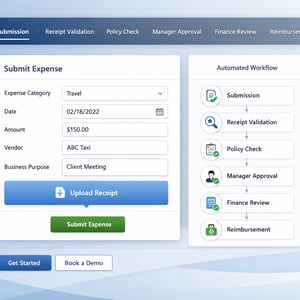
Submission: The employee submits an expense report through a structured form — expense category, date, amount, vendor, business purpose, and receipt attachment (photo upload from mobile). The form rejects submissions missing required fields before they even enter the workflow.
Receipt Validation: The submitted receipt is logged against the expense record. OCR integration can extract receipt data automatically, reducing manual entry for employees and enabling automated amount verification.
Policy Check: The workflow checks the submitted expense against configured policy rules: per-diem limits by city, meal caps, hotel rate limits, prohibited categories. Policy violations are flagged automatically with the relevant policy reference — giving the employee a chance to correct or justify before the request reaches the manager.
Manager Approval: Policy-compliant expenses route to the employee's manager for approval, with full expense details and receipt accessible in the approval interface. A 24-48 hour SLA is enforced with escalation to the department director if not met.
Finance Review: For expenses above a defined threshold, or for certain categories requiring additional scrutiny (travel, entertainment), finance conducts a second-level review. Standard expenses below the threshold are auto-approved at this stage.
Reimbursement: Approved expenses are released to the next payment run or trigger an ACH direct deposit depending on the accounting system integration. The employee receives confirmation of the reimbursement amount and expected date.
What No-Code Expense Automation Handles for You
Organizations new to expense automation often underestimate how much coordination work the workflow handles that currently falls on humans:
-
Sending submission reminders before the monthly expense deadline
-
Routing to the correct approver based on the employee's reporting structure
-
Enforcing escalation when approvals are delayed
-
Flagging policy exceptions for additional documentation rather than auto-rejecting
-
Aggregating approved expenses for the payment run without manual spreadsheet work
-
Generating the audit report for external finance or tax purposes
Building Your Expense Workflow Without Code
-
Create the expense submission form. Include fields for expense date, category (dropdown mapped to GL codes), amount, currency (if international), vendor name, business purpose, and receipt upload. Set required fields to enforce data completeness at submission.
-
Configure policy rules. In Kissflow, policy rules are plain-language conditions: 'If Category is Meals and Amount is greater than $75 per person, flag for justification.' Map your expense policy document into these conditions systematically.
-
Set up approval routing. Connect to your organizational hierarchy so expenses automatically route to the correct manager. Configure secondary finance review for expenses above your threshold (commonly $500-$1,000).
-
Build the reimbursement trigger. Connect approved expense records to your accounting system — QuickBooks, Xero, NetSuite, SAP — to create payment records automatically. Configure the employee notification to fire upon payment initiation.
-
Set the month-end deadline enforcement. Configure a submission deadline (e.g., the 20th of each month), with automated reminders at five days, two days, and the day before. After the deadline, route late submissions to a separate queue for the following month's payment run.
Policy Enforcement: How to Bake Rules Into the Workflow
The most powerful aspect of automated expense management is the shift from reactive policy enforcement (catching violations after the fact) to proactive policy enforcement (preventing violations at submission time).
In Kissflow, policy rules are configured as conditions on the workflow form and routing logic. You can define global rules (applicable to all employees), role-based rules (executives may have higher per-diem limits), and category-specific rules (alcohol is excluded from entertainment reimbursements). Each rule violation generates a specific message for the employee — not a generic rejection — so they understand what to correct or how to provide justification.
Integration with Accounting Software and ERP
An expense workflow that terminates at 'approved' and requires finance to manually enter the payment into the accounting system has not eliminated the most time-consuming step. Integration is essential.
Kissflow integrates with QuickBooks Online, Xero, NetSuite, SAP, and Oracle Financials. When an expense is approved in Kissflow's no-code platform, the integration creates the corresponding payable record in the accounting system automatically — including the GL code mapping configured in the expense form. Month-end reconciliation becomes a verification step rather than a data-entry task.
Automate Expenses Before Next Month-End
Month-end close urgency is real. The most effective implementation approach is to run a parallel process for one month — let employees submit through the new workflow while finance processes through the old method — and compare the results before switching fully. This de-risks the transition and builds confidence in the new process before the switch is complete.
Related Topics